Solved: Valorant Van 84 Error Explained & Best Fixes
Few things are more frustrating for a dedicated gamer than gearing up for a thrilling match in Valorant, only to be stopped dead in your tracks by an obscure error code. Among the array of potential technical glitches, the notorious
Van 84 error stands out as a common culprit, frequently halting players from diving into the tactical shooter action. This guide is your ultimate resource, designed to demystify the
Van 84 error, dissect its underlying causes, and provide you with a comprehensive arsenal of effective solutions to get you back into the game without delay.
What Exactly is the Valorant Van 84 Error?
At its core, the
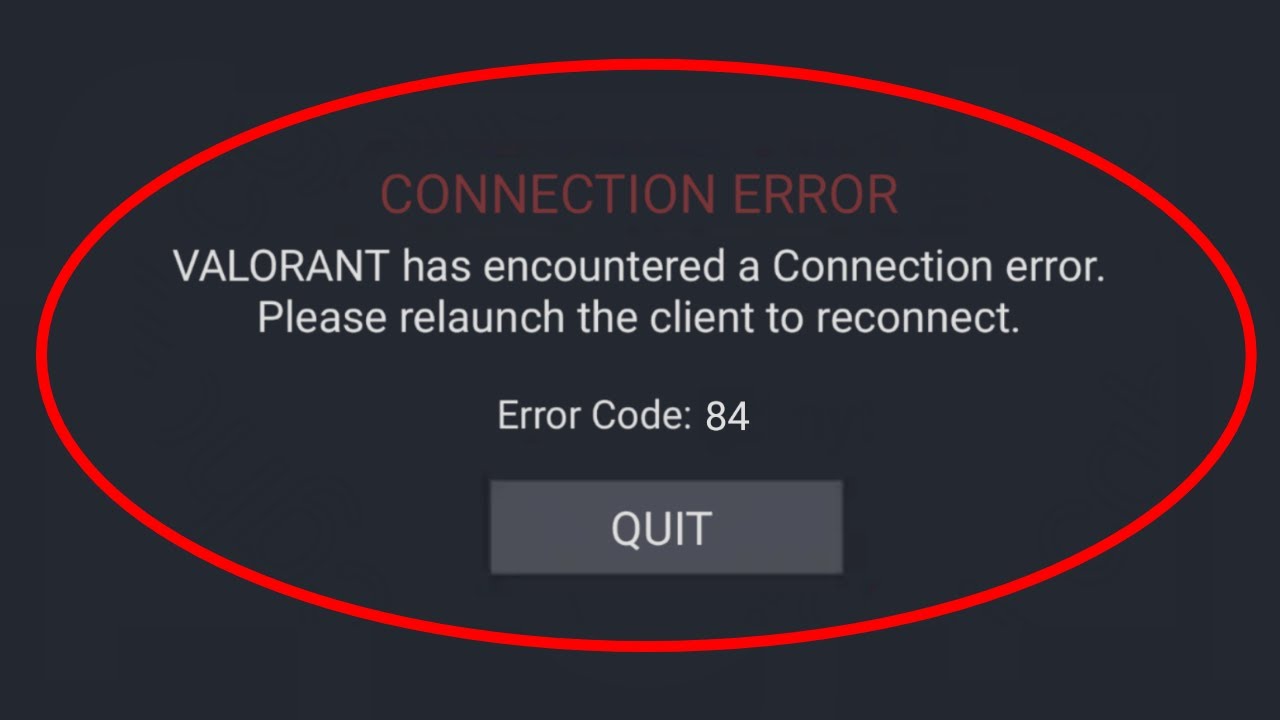
Valorant Van 84 error is a connectivity issue that arises when your Valorant game client struggles to establish or maintain a stable connection with Riot Games' servers. Imagine your game client trying to shake hands with the Valorant servers, but something in between is preventing that handshake from happening successfully. When this error occurs, you'll typically encounter a message such as: "There was an error connecting to the platform. Please restart the client."
This message, while seemingly straightforward, signifies a deeper problem that prevents you from joining matches, accessing game functions, or even logging in properly. It’s not just a minor annoyance; it can entirely prevent you from enjoying Valorant. Understanding that
Van 84 is fundamentally a connection-based problem is the crucial first step toward effectively troubleshooting and resolving it.
Unmasking the Culprits: Why Does Van 84 Strike?
Before you can effectively fix the
Van 84 error, it's vital to understand the myriad reasons why it might be appearing. The error rarely points to a single, obvious issue, but rather a combination of factors related to your internet connection, system settings, or even the game servers themselves. By identifying the potential causes, you can narrow down your troubleshooting efforts.
Server Downtime & Maintenance
One of the most common and often overlooked reasons for the
Van 84 error is simply that the Valorant game servers are undergoing maintenance or experiencing temporary downtime. Riot Games frequently takes servers offline for updates, patches, or emergency fixes, which will naturally prevent players from connecting. While usually scheduled, unexpected outages can also occur.
Internet Connectivity Issues
Your own internet connection is a primary suspect. If your internet service is unstable, slow, experiencing high packet loss, or unusually high latency, your Valorant client will struggle to maintain the constant connection required to play. This can range from a simple Wi-Fi hiccup to more significant problems with your Internet Service Provider (ISP) or home network setup. ISPs might also occasionally throttle specific types of traffic, including game data, which can manifest as connectivity issues like Van 84.
Overzealous Security Software (Firewalls & Antivirus)
Strict firewall rules or aggressive antivirus software can sometimes misidentify Valorant's network traffic as a threat and block its connection to the internet. While these programs are essential for your system's security, overly cautious settings can inadvertently prevent legitimate applications like Valorant from communicating with external servers, leading directly to the
Van 84 error.
Corrupted Game Files or Incomplete Installations
If critical game files become corrupted, damaged, or if an initial game download was incomplete, Valorant might not be able to function correctly. This could prevent it from accessing necessary resources or establishing a proper connection with the game servers, resulting in errors like Van 84.
Router Misconfigurations & Network Settings
Your home router's settings play a significant role in how your computer connects to the internet and external servers. Incorrect port forwarding, a strict Network Address Translation (NAT) type, or outdated router firmware can all impede Valorant's ability to communicate with Riot's servers, triggering the
Van 84 error. Using VPNs or proxy servers might also introduce conflicts that interfere with Valorant's connection.
Background Applications & Bandwidth Hogs
Other programs running on your computer can consume significant network bandwidth or interfere with network communications, especially if they are actively downloading large files, streaming high-definition content, or using peer-to-peer protocols (like torrent clients). This competition for network resources can starve Valorant of the bandwidth it needs, leading to connectivity problems and the dreaded Van 84.
Proven Solutions: How to Resolve Van 84 and Get Back in the Game
Fixing the
Van 84 error often requires a systematic approach, working through potential solutions from the simplest to the more complex. Don't get discouraged if the first few attempts don't work; persistence is key.
Start with the Basics: Restart Everything
This might sound overly simplistic, but restarting your devices can resolve a surprising number of transient network glitches.
- Restart Valorant and the Riot Client: Close both applications completely and relaunch them.
- Restart Your PC: A full system reboot can clear temporary software conflicts and refresh network configurations.
- Restart Your Router/Modem: Power cycle your network hardware by unplugging it for 30-60 seconds, then plugging it back in. This often refreshes your internet connection and clears any minor network device errors.
Verify Valorant Server Status
Before you dive into extensive troubleshooting on your end, always check if the problem lies with Riot Games.
- Riot Games Server Status Page: Visit the official Riot Games Service Status page to see real-time updates on Valorant server health.
- Valorant Social Media: Follow Valorant's official Twitter or other social media channels for immediate announcements regarding outages or maintenance.
If the servers are down, you simply have to wait until they are back online. This step can save you hours of unnecessary troubleshooting.
Check and Optimize Your Internet Connection
A stable and fast internet connection is paramount for online gaming.
- Run a Speed Test: Use a reputable online speed test (e.g., Speedtest.net) to check your download speed, upload speed, and ping.
- Wired Connection: If possible, switch from Wi-Fi to an Ethernet cable. Wired connections are far more stable and less prone to interference.
- Contact Your ISP: If you suspect a larger issue with your internet service (consistently slow speeds, frequent disconnects), contact your Internet Service Provider.
- Flush DNS: Open Command Prompt as administrator and type
ipconfig /flushdns followed by ipconfig /release and ipconfig /renew. Restart your PC.
Adjust Firewall and Antivirus Settings
Your security software might be too aggressive.
- Add Exceptions: Navigate to your antivirus/firewall settings and add Valorant, Riot Client, and the anti-cheat (Riot Vanguard) to the list of allowed applications or exceptions.
- Temporarily Disable (Caution!): As a diagnostic step, try temporarily disabling your firewall and antivirus (briefly!) to see if Van 84 resolves. If it does, you've found your culprit and can then re-enable them, focusing on proper exception rules.
Repair Corrupted Game Files
The Valorant client has built-in tools to verify and repair its files.
- Riot Client Repair: Open the Riot Client, go to Valorant, click on the gear icon (Settings) in the bottom right, and look for a "Repair" or "Verify" option. This will scan your game files and replace any corrupted ones.
- Reinstallation: If repair doesn't work, a complete reinstallation of Valorant (and Riot Vanguard) can often resolve deeply embedded file corruption issues. For a more detailed look at this and other solutions, check out our article on Unraveling Valorant's Van 84 Error: Key Causes & Solutions.
Configure Your Router and Network Settings
Advanced network settings can sometimes be the root cause.
- Port Forwarding: Valorant uses specific ports to communicate. You might need to configure port forwarding on your router to ensure these ports are open. (Common Valorant ports: TCP 80, 443, 2099, 5223, 843, 3999, 5000-5500, 8393-8400, 5060-5090; UDP 5000-5500, 8000-8400). Consult your router's manual or ISP for instructions.
- Update Router Firmware: Outdated router firmware can cause connectivity problems. Check your router manufacturer's website for updates.
- NAT Type: Ensure your NAT type isn't "Strict." A moderate or open NAT type is generally preferred for online gaming.
Manage Background Applications
Ensure Valorant has enough resources and isn't being interfered with.
- Close Unnecessary Programs: Before launching Valorant, close any bandwidth-intensive applications like streaming services, torrent clients, or large download managers.
- Task Manager: Use Task Manager (Ctrl+Shift+Esc) to identify and close any processes that are consuming a lot of network bandwidth or CPU, which might interfere with Valorant.
- Clean Boot: For advanced troubleshooting, perform a "clean boot" of Windows to start your system with a minimal set of drivers and startup programs. If Van 84 is resolved, you can then isolate the conflicting software.
Consider Your ISP (If All Else Fails)
If you've exhausted all other options, and the problem persists, it might be an issue with your ISP. They might be blocking certain connections or routing your traffic inefficiently. When contacting them, clearly explain that you are experiencing a connection error (Van 84) with Valorant and have already performed extensive troubleshooting on your end. For a truly comprehensive look at troubleshooting all aspects of this error, refer to our detailed
Stop Valorant Van 84 Error: Comprehensive Troubleshooting Guide.
Pro Tips for Avoiding Future Van 84 Encounters
While you can't prevent every error, adopting some best practices can significantly reduce your chances of running into the
Van 84 error again:
- Keep Software Updated: Regularly update Windows, your graphics drivers, and Valorant itself.
- Prioritize Wired Connection: Whenever possible, use an Ethernet cable for gaming to ensure the most stable connection.
- Monitor Server Status: Get into the habit of quickly checking Valorant's server status before launching the game, especially after major patches.
- Optimize Background Processes: Avoid running unnecessary, bandwidth-heavy applications while playing Valorant.
- Understand Your Network: Familiarize yourself with your router's basic settings and how to access them.
The
Valorant Van 84 error, while frustrating, is almost always a solvable issue. By systematically working through the potential causes and applying the proven solutions outlined in this guide, you can pinpoint the problem and implement the necessary fixes. Don't let a connectivity hiccup keep you from climbing the ranks and enjoying the intense tactical gameplay Valorant has to offer. Follow these steps, troubleshoot methodically, and you'll be back in the action, clutch plays and all, in no time!